




Structure of a simple WiFi network
Your Home Network: Setting up Wi-Fi made easy!
Imagine your home is a digital command center. Naturally, you want to access the internet with your PC, laptop or smartphone at the same time. The star of this show is your Wi-Fi router. It is essentially the digital gatekeeper that connects all your devices and ensures that your requests zoom off to the internet and the answers find their way back to the correct device.
The highlight: thanks to the router, everyone can be online at the same time via this single internet connection. But the router does even more! It also works as an Ethernet Switch. This means it establishes a shared local area network (LAN). All devices in the network can "talk" to each other, for example, to exchange data lightning-fast or to access a shared printer.
Your network usually uses two methods: cables (Ethernet) for stable, super-fast connections (ideal for PCs or gaming) and wireless (Wi-Fi) for maximum flexibility. In our example, we naturally use both! 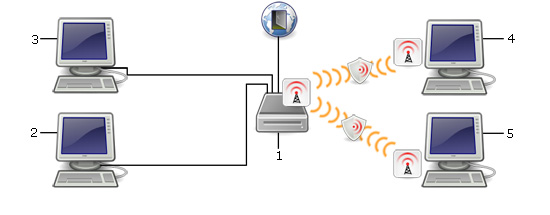
Your router (1) is your gateway to the world, often connected via cable to your DSL/cable modem and already has contact with the internet.
Devices 2 and 3 are connected by cable here. Very practical: the router has the DHCP Service running. This is like a digital mailman who automatically assigns a unique IP address to every device. Think of the IP address as a house number in the network – every device needs one to communicate without errors. Advanced users can also assign a static IP themselves, but with DHCP, everything runs automatically at first!
As you can see, devices 3 and 4 are connected via Wi-Fi. For this, your device needs a Wi-Fi module (laptops usually have this built-in). For your PC without Wi-Fi? A Wi-Fi USB Adapter is the simple solution! If the Wi-Fi signal gets weak at the back of the house, you can often work wonders with a stronger antenna on the router (e.g., an omnidirectional antenna) or a more powerful Wi-Fi module on the end device.
So that you can find your network among all the neighboring Wi-Fi signals, you define a name in the router: the SSID (Service Set Identifier). This is the name displayed on your laptop and phone. A small pro-tip for more discretion: you can also hide the SSID!
Additionally, you set a Wi-Fi channel. In the common 2.4 GHz band (more on that in our special article!), there are 13 channels. Imagine these as different streets, so that not everyone is broadcasting on the same frequency and interfering with each other. It is often smartest to set the channel selection to automatic. The router then checks for itself which frequency is currently free and selects the optimal channel.
🚨 Mega-Important: Security!
Your Wi-Fi network must be protected with the latest available encryption standard - currently, this is WPA3. Without this protection, it is child's play for strangers to penetrate your network or misuse your connection for illegal activities. Attention! According to German law, you as the network operator can be held partially responsible if your Wi-Fi is unprotected.
Set WPA3 in the router settings and choose a secure password. Only when you or someone you trust enters this key code when connecting will the router accept the new device. This keeps your digital home safe!
Tip from the WLAN-Shop24 team: Whether you need a new Wi-Fi router, a stable network cable or clever Wi-Fi accessories - in our WLAN-Shop24 you will find everything you need to build and optimize your network!