

Updated: May 17, 2026 | By your WiFi technology expert team
Imagine your home as a digital command center. Whether it is your PC, laptop, smartphone, or smart TV – everyone wants to be online at the same time. The star of this show is your WiFi router. It acts as the digital gatekeeper, connecting all your devices and ensuring your data packets reach their destination safely and quickly.
The best part: Thanks to the router, everyone can be online simultaneously. But it does even more! It also functions as an Ethernet Switch, building a local area network (LAN). This allows your devices to communicate with each other, for example, to exchange data at lightning speed or share a common printer.
Cables vs. Wireless: A Mixed Network Topology
In a modern setup, you typically use two paths for connectivity, as shown in the network topology below:
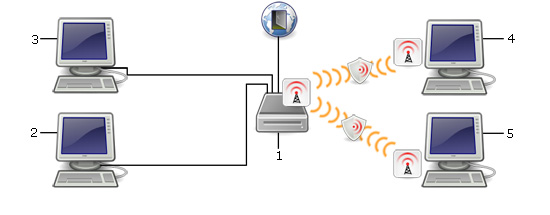
- Ethernet (Cabled): Ideal for stationary devices like gaming PCs or smart TVs. It provides the most stable and fastest connection.
- WiFi (Wireless): Provides maximum flexibility for smartphones, tablets, and laptops.
If your PC does not have built-in WiFi, a WiFi USB Adapter is a simple and effective solution for upgrading your hardware.
Key Terms Explained: IP, SSID, and DHCP
To ensure everything runs smoothly, your router uses several practical services:
- DHCP Service: Think of this as a digital postman. It automatically assigns a unique IP address to every device in the network. This IP is like a house number – without it, the router would not know where to send the data.
- SSID (Service Set Identifier): This is simply the name of your WiFi.
- WiFi Channel: In the 2.4 GHz band, there are 13 channels. If many neighbors use the same band, it causes congestion. Modern routers often choose the channel automatically to avoid interference.
🚨 Crucial: Network Security
An unsecured WiFi is an invitation for unauthorized users. This is not only risky for your data but can also have legal consequences.
Use WPA3: Make sure your network is protected with the latest WPA3 encryption standard. Also, choose a strong password. Only those who know this code are allowed to enter your digital home.
FAQ: Common Questions About Setting Up WiFi
What is the difference between LAN and WLAN?
LAN (Local Area Network) refers to a cabled connection, which is particularly stable and fast. WLAN (Wireless LAN) is the wireless version for mobile freedom.
Why does every device need its own IP address?
The IP address serves as a unique address within your network. This is the only way the router can send data packets specifically to the correct device.