


Updated: May 17, 2026 | Reading time: approx. 3 minutes
On campsites or marinas with a captive portal (hotspot login page) that do not require a direct WiFi key, proceed as follows with your ALFA R36:
1. Identify the Unencrypted Network
In the R36’s "Site Survey" list, check whether the WiFi network is encrypted under the Encryption column.
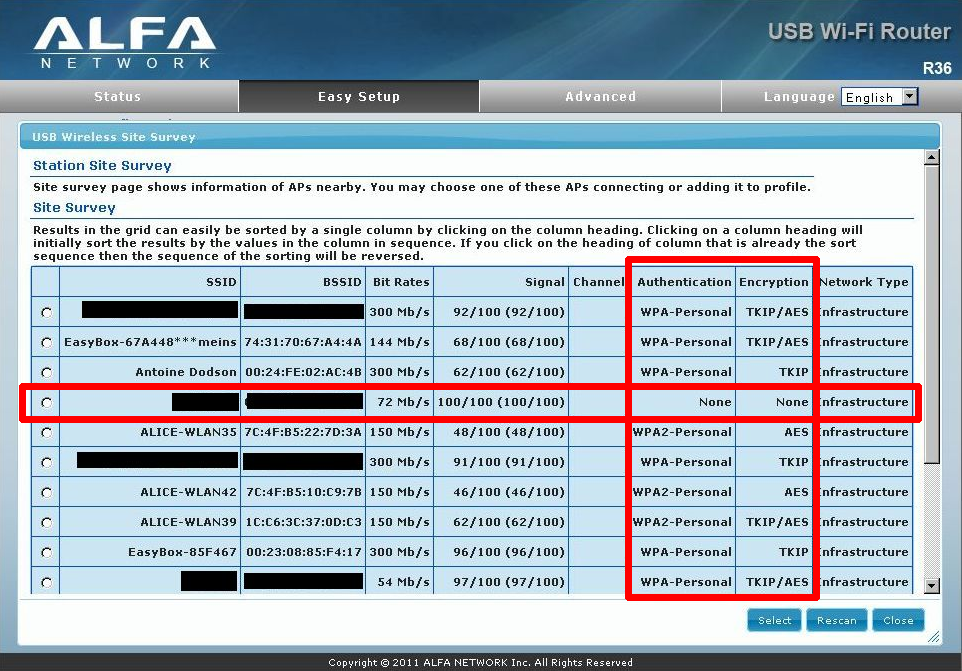
If "None" appears under Encryption, you do not need to enter any network key in the router interface.
2. Connect and Open the Login Page
Simply select the network and click Select -> Save & Activate -> Done. The USB LED on the router should light up, indicating a successful physical connection to the hotspot.
Now, try accessing a website on your phone or PC. The browser should redirect you to the hotspot login page, where you can enter your personal hotspot credentials (voucher code).
FAQ: ALFA R36 Hotspot Login
Why am I not being redirected to the login page?
Browser caches or secure HTTPS sites often block automatic redirects. Try opening a "Private" or "Incognito" browser window and visit an unsecured HTTP site (e.g., http://neverssl.com) to force the redirect.
Do I need to log in with every device?
No. Once you log in on one device, the ALFA R36 shares that authenticated internet connection with all your other connected devices automatically.