

Updated: May 17, 2026 | Reading time: approx. 5 minutes | Your expert guide to camping WiFi
The ALFA AIP-W525HU is the perfect router to pair with a high-performance ALFA USB WiFi adapter to capture a distant signal and rebroadcast it as a private WiFi network.
Preparation & Installation
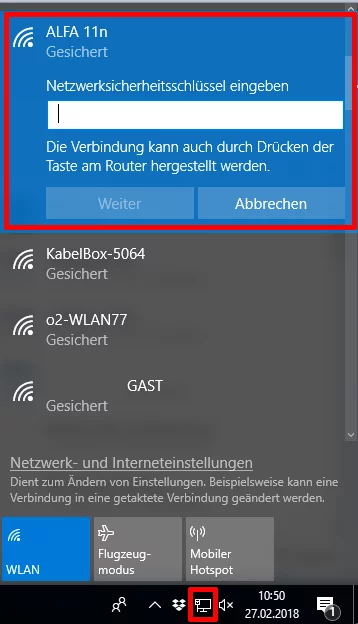
Plug your adapter into the router, connect power, and join the open ALFA 11n network after 2 minutes.
Configuration via the Web Interface
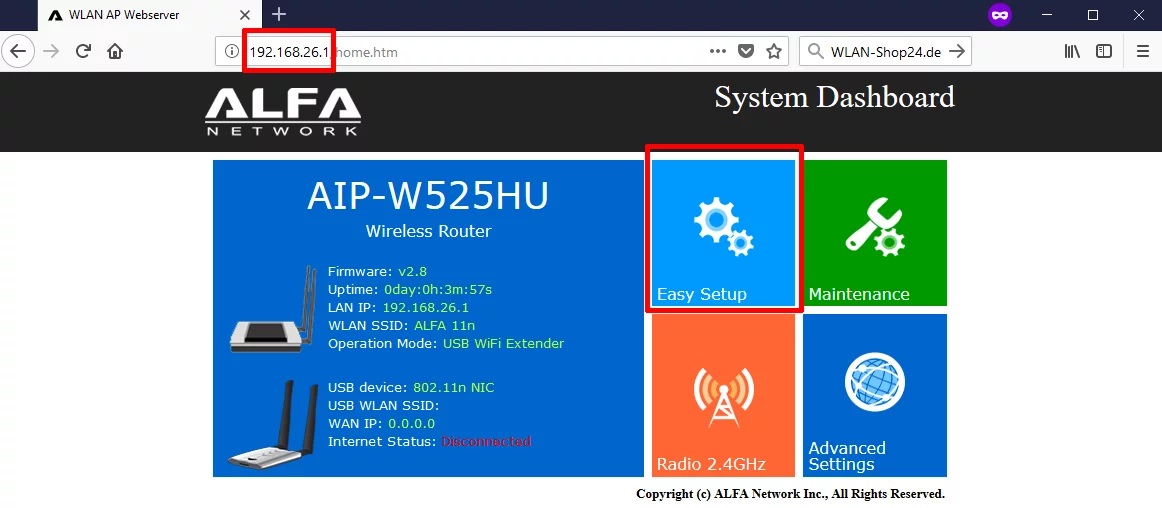
Step 1: Start Easy Setup
Open your browser, navigate to 192.168.26.1, and click Easy Setup.
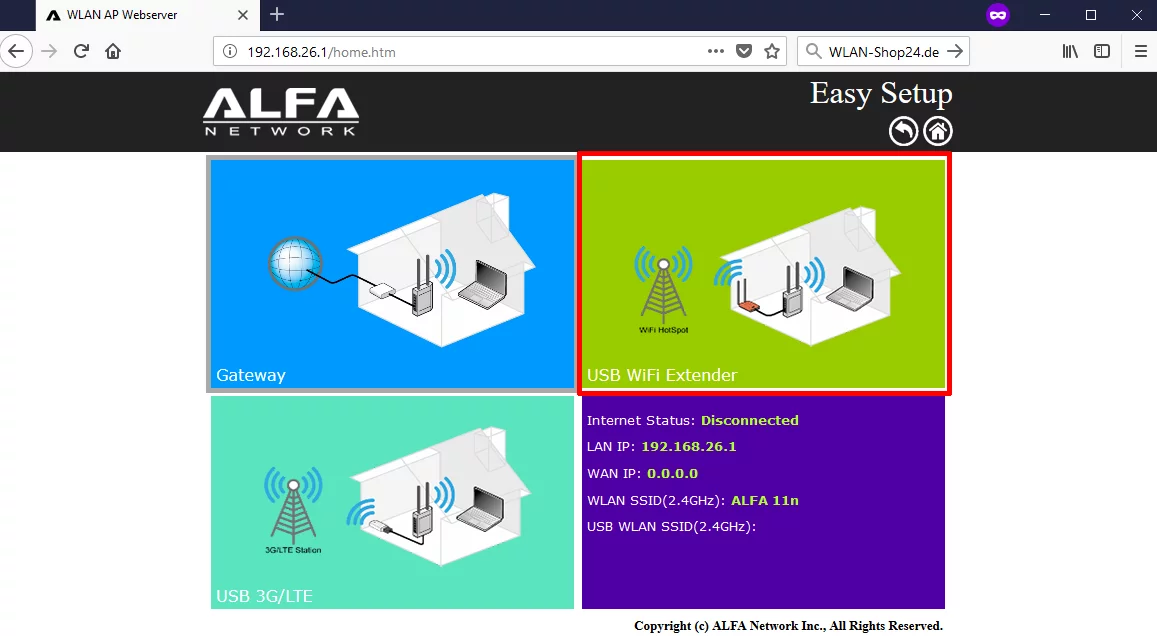
Step 2: Choose Operation Mode
Select USB WiFi Extender from the menu.
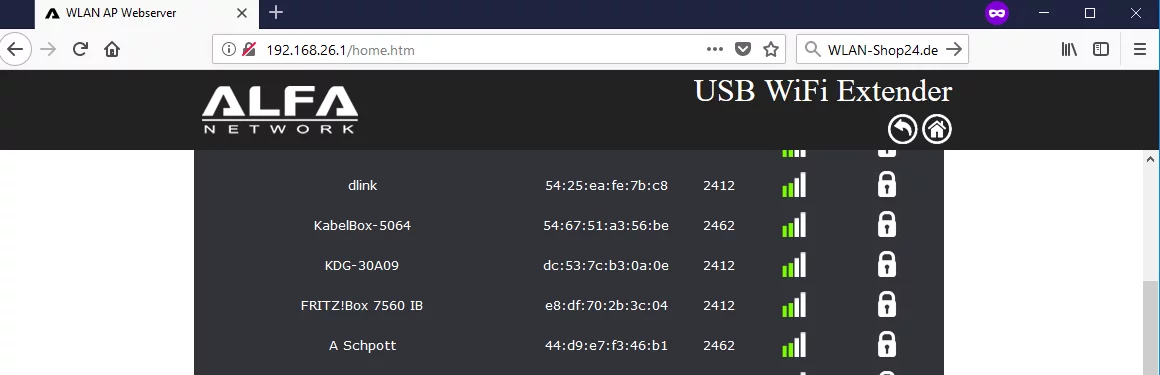
Step 3: Select Target WiFi
Click on the target network you wish to connect to.
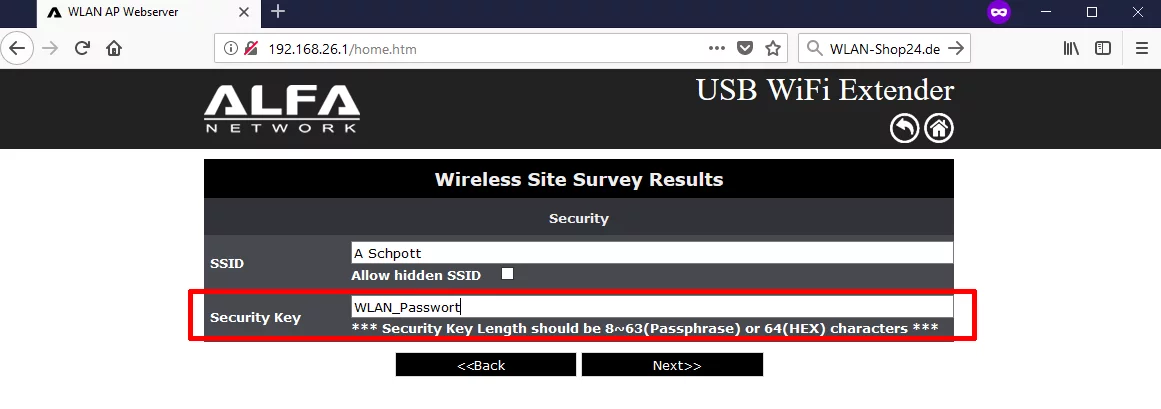
Step 4: Enter WiFi Password
Enter the password under Security Key and click Next>>.
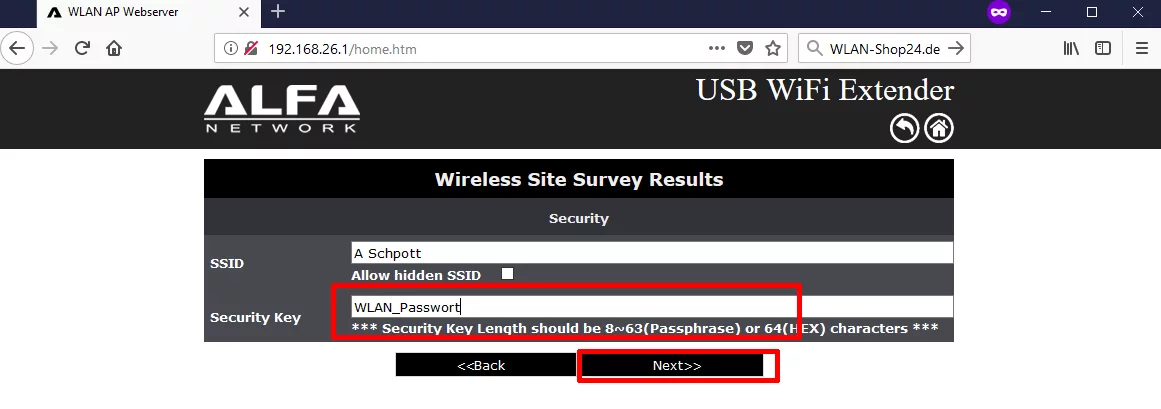
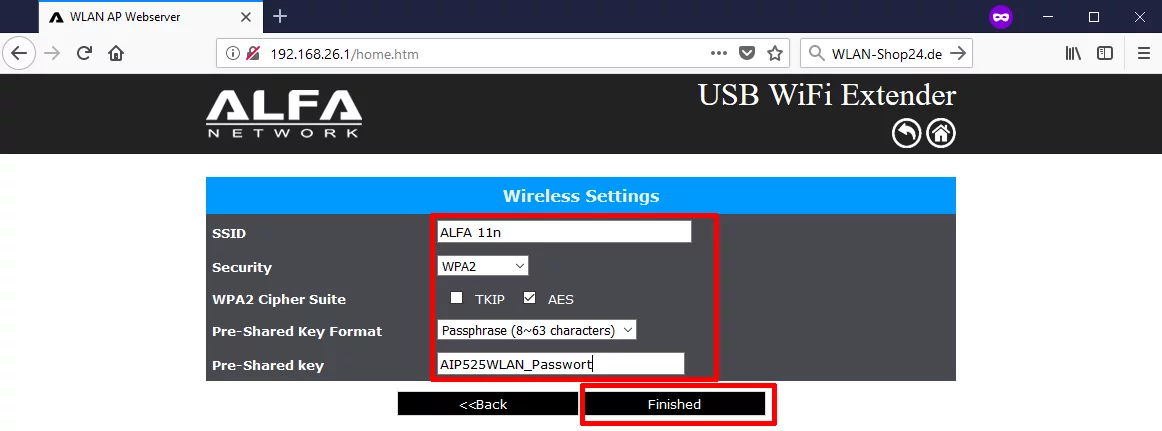
Step 5: Secure Your Private Network
Change the local SSID, select WPA2/AES, define a secure password, and click Finished.
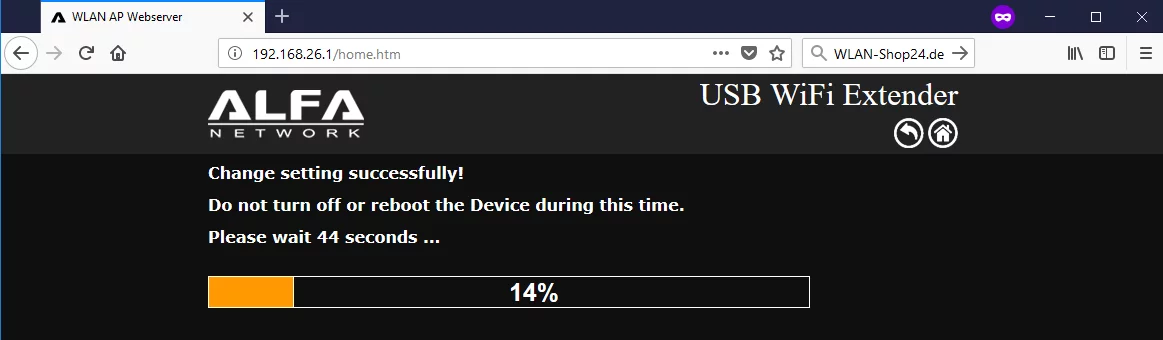
Step 6 & 7: Router Reboot
The router saves settings and restarts. A countdown timer will appear.
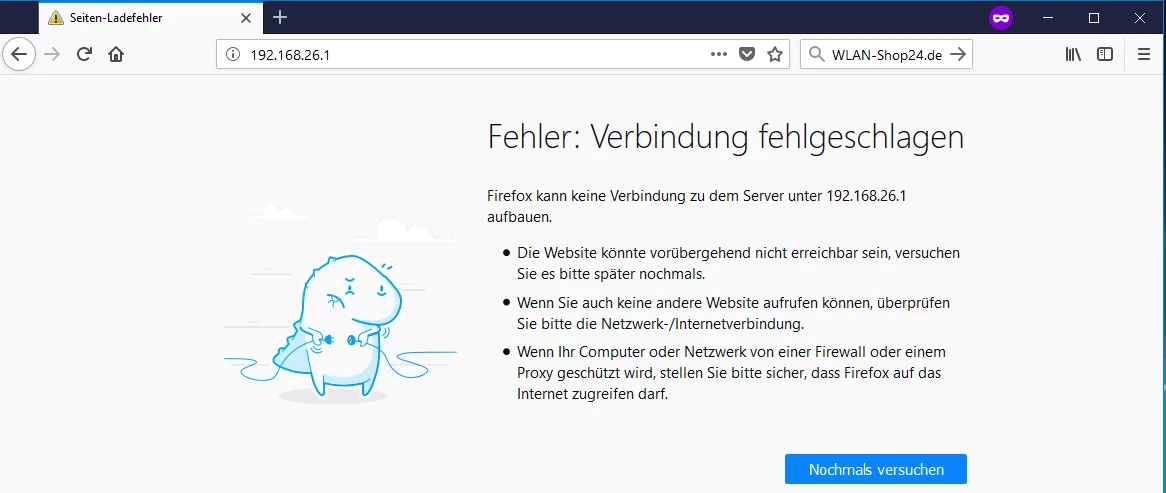
After the timer, a browser error page is normal as the old WiFi SSID name has changed.
Step 8: Reconnect Your Devices
Open your device WiFi settings and connect to your newly created network using your password.
Step 9 & 10: Check Connection Status
Navigate to 192.168.26.1 again. The status should now read Connected.
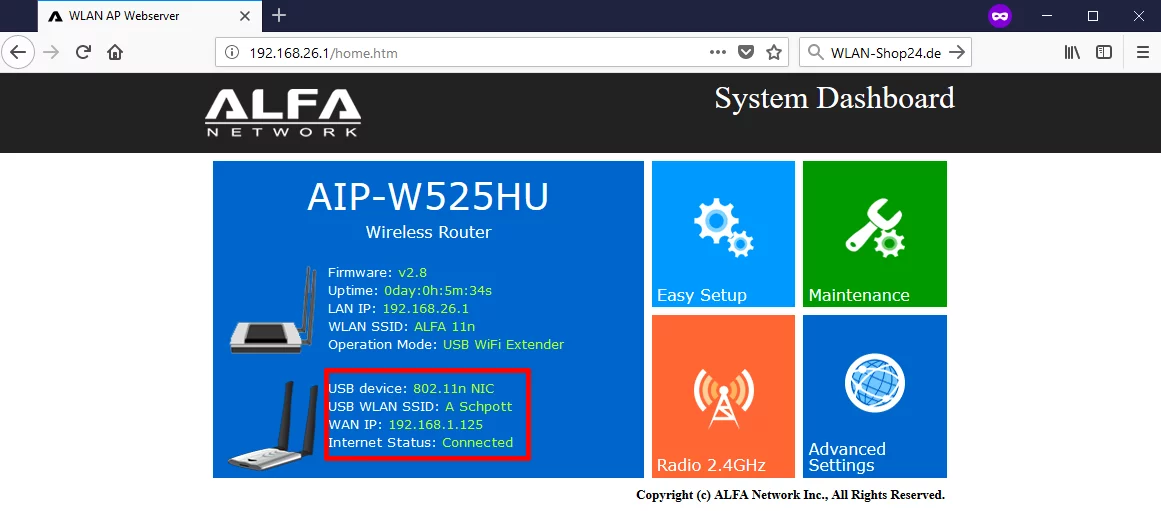
If it reads Disconnected, check your target network password for typos and re-run setup.